How to Spot a Fake or Bad UK-Used Laptop Before Paying
Buying a UK-used laptop can help you get a powerful computer at a lower price. However, the market also contains faulty, refurbished, repackaged and heavily used laptops that may look attractive on the outside but develop serious problems shortly after purchase.
Some sellers clean damaged laptops, replace worn parts and present them as fairly used devices in excellent condition. Others may advertise a lower laptop model as a higher specification to increase the price.
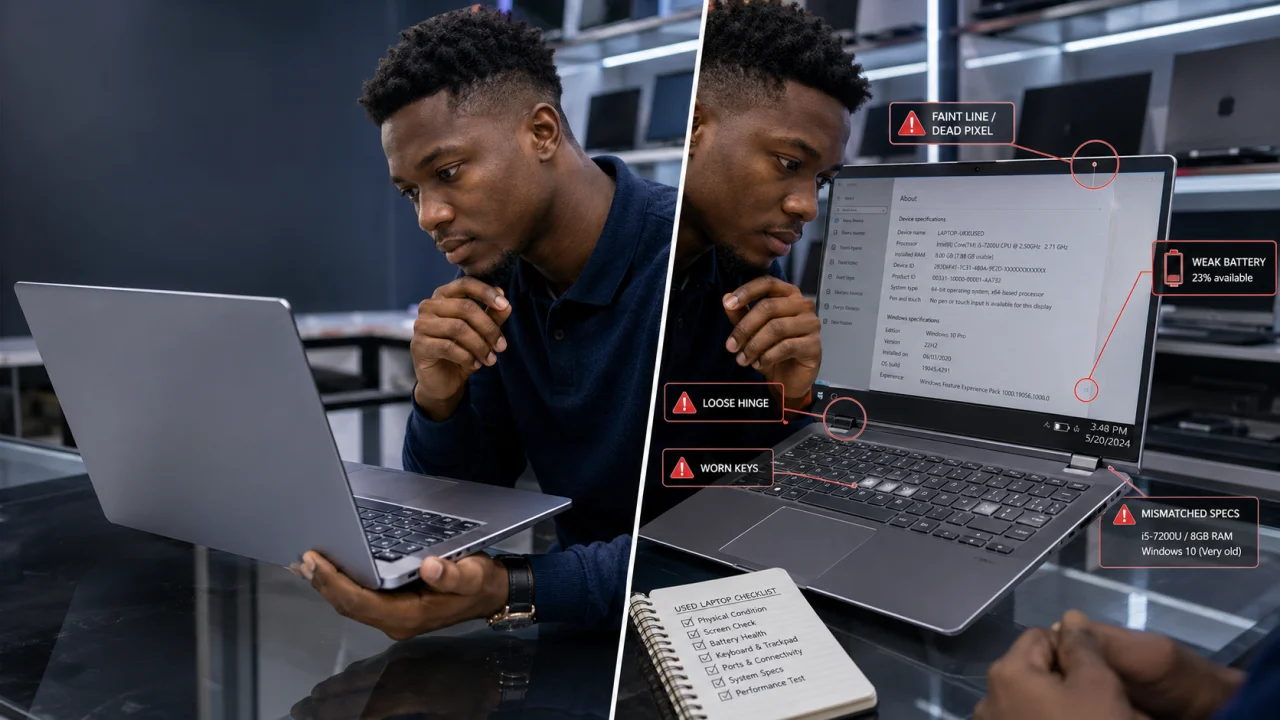
Before paying for any UK-used laptop, you need to inspect its physical condition, specifications, battery, storage, keyboard, screen and overall performance.
This guide explains how to spot a fake or bad UK-used laptop before spending your money.
What Does “UK-Used Laptop” Mean?
A UK-used laptop is a laptop previously owned and used in the United Kingdom before being imported for resale. It is also commonly described as a foreign-used laptop.
A genuine UK-used laptop is not necessarily new or perfect. Its condition depends on how long it was used, how well the previous owner maintained it and whether any major parts have been replaced.
Some UK-used laptops are still in excellent condition, while others may have weak batteries, damaged screens, faulty keyboards or worn internal components.
The label “UK-used” should therefore not be treated as proof of quality. You must inspect the laptop properly before buying it.
1. Confirm the Laptop’s Real Specifications
Never depend only on the specification written on the laptop body, carton or seller’s advertisement. A seller may claim that a laptop has 16GB RAM, a Core i7 processor and 512GB storage when the actual specifications are lower.
On a Windows laptop, open:
Settings → System → About
Check the following information:
-
Processor type and generation
-
Installed RAM
-
System type
-
Windows edition
-
Device name
You can also press Windows key + R, type dxdiag and press Enter. This will display additional system information.
To check storage capacity, open File Explorer, select This PC and inspect the available drives.
Make sure the laptop’s specifications match what the seller advertised. Do not pay a higher price for a Core i7 laptop when the system is actually running a Core i5 or older processor.
2. Check the Processor Generation
The processor generation is often more important than the Core i3, Core i5 or Core i7 label.
For example, a newer-generation Core i5 laptop may perform better and consume less power than a much older Core i7 laptop. Some sellers emphasise “Core i7” without explaining that the processor may be several generations old.
You can identify the generation from the processor model number. For example, in Intel Core i5-8250U, the number eight indicates an eighth-generation processor.
Before buying, confirm that the processor generation is suitable for your needs. Students and office users may not require the newest processor, but very old models may struggle with modern software, multitasking and future operating-system updates.
3. Inspect the Laptop Body Carefully
Examine the laptop under proper lighting. Do not allow the seller to rush you.
Check the body for:
-
Cracks around the hinges
-
Missing screws
-
Loose screen movement
-
Deep scratches
-
Broken corners
-
Gaps between the laptop casing
-
Signs of glue or repairs
-
Bent ports
-
A swollen or raised keyboard area
Small scratches may be normal on a used laptop. However, cracks around the hinges or gaps in the casing may indicate that the laptop has been dropped, opened repeatedly or poorly repaired.
Open and close the laptop several times. The hinges should move smoothly without making unusual sounds. Loose or stiff hinges can eventually damage the screen and casing.
4. Test the Laptop Screen
A damaged screen can be expensive to replace. Before paying, test the screen using different background colours.
Open full-screen images with white, black, red, green and blue backgrounds. Look for:
-
Dead pixels
-
Bright spots
-
Dark patches
-
Flickering
-
Vertical or horizontal lines
-
Colour distortion
-
Screen shaking
-
Uneven brightness
Increase and reduce the screen brightness. The brightness controls should respond correctly.
Move the screen gently backward and forward. If the display flickers or disappears during movement, the laptop may have a faulty screen cable or damaged hinge connection.
Do not accept explanations such as “the line will disappear later.” Screen problems usually become worse, not better.
5. Check the Keyboard and Touchpad
Open a text editor and press every key on the keyboard. Test the letters, numbers, space bar, Enter key, Shift key, arrow keys and function keys.
Pay special attention to keys that appear newer or cleaner than the others. They may have been replaced.
The touchpad should respond smoothly to movement, clicking and scrolling. Test both left-click and right-click functions.
A faulty keyboard may seem like a minor problem, but replacement can become difficult or expensive, especially for less common laptop models.
6. Test the Battery Before Paying
Battery weakness is one of the most common problems with UK-used laptops.
Charge the laptop, unplug the charger and observe how quickly the battery percentage drops. A laptop that loses a large percentage within a few minutes may have a weak battery.
On Windows, you can generate a battery report. Open Command Prompt and type:
powercfg /batteryreport
Press Enter and open the file location displayed on the screen.
Compare the battery’s design capacity with its full charge capacity. A major difference may indicate significant battery wear.
Remember that battery life depends on screen brightness, applications and laptop age. However, the seller should clearly disclose a weak battery before payment.
7. Listen for Strange Sounds
Turn off any music or background noise while testing the laptop.
Listen for:
-
Loud fan noise
-
Clicking sounds
-
Grinding sounds
-
Constant vibration
-
Unusual buzzing
A loud fan may indicate dust buildup, overheating or a failing cooling system. Clicking sounds from a laptop with a mechanical hard drive may indicate that the drive is developing a fault.
Allow the laptop to remain on for at least 15 to 30 minutes. Open several applications and observe whether the fan becomes unusually loud or the system becomes excessively hot.
8. Check for Overheating
Place your hand near the keyboard, bottom panel and air vents. Mild warmth is normal, but extreme heat during light use may indicate a problem.
Overheating can result from:
-
Blocked air vents
-
Dust inside the cooling system
-
A faulty fan
-
Dried thermal paste
-
Heavy background processes
-
Previous motherboard repairs
A laptop that overheats may shut down unexpectedly, reduce performance or damage internal components.
Test the laptop with common activities such as web browsing, playing a video and opening multiple applications. Do not judge its condition after only two minutes of use.
9. Test Every Port and Connection
Bring the necessary accessories when going to inspect a laptop.
Test the following where available:
-
USB ports
-
Charging port
-
HDMI port
-
Audio jack
-
Memory card slot
-
Ethernet port
-
Webcam
-
Microphone
-
Bluetooth
-
Wi-Fi
Connect a flash drive to every USB port. Use earphones to test the audio jack. Connect the laptop to Wi-Fi and browse several websites.
A laptop may look perfect but have damaged ports caused by liquid exposure, physical force or motherboard problems.
10. Confirm That the Charger Is Suitable
Check whether the charger is original, compatible and in good condition.
Inspect the charger for:
-
Exposed wires
-
Electrical tape
-
Loose connections
-
Excessive heat
-
Sparks
-
A bent charging pin
-
An unstable charging connection
Move the charger gently while it is connected. The charging status should remain stable.
A fake or unsuitable charger may charge slowly, damage the battery or create electrical risks. Do not ignore a damaged charger simply because the seller promises that it will continue working.
11. Check the Storage Drive’s Health
A failing storage drive can cause slow performance, freezing, corrupted files and sudden startup failure.
Ask whether the laptop uses a solid-state drive or a mechanical hard drive. An SSD generally provides faster startup and better responsiveness.
Observe how long the laptop takes to start. Open files, applications and folders. The system should not freeze repeatedly or display frequent error messages.
Be cautious when a seller says the laptop only needs Windows installation. The real problem may be a failing storage drive, damaged motherboard or corrupted hardware component.
12. Restart the Laptop
Some laptop problems only appear during startup or shutdown.
Restart the laptop and observe whether it:
-
Boots normally
-
Displays error messages
-
Produces unusual sounds
-
Takes too long to load
-
Shows a password or activation lock
-
Restarts repeatedly
-
Displays a blue screen
Do not buy a laptop you were not allowed to restart. A seller who refuses a basic restart test may be hiding a serious problem.
13. Check the Serial Number and Model Number
Find the serial number on the laptop body and compare it with the number displayed in the system or BIOS.
You can usually enter the BIOS by pressing a key such as F2, F10, F12, Delete or Esc during startup. The correct key depends on the laptop brand.
Differences between the physical label and system information may indicate that the casing, motherboard or other major parts have been changed.
You can also use the manufacturer’s official support page to check the laptop model, warranty history and original configuration where available.
14. Watch for Signs of a Repackaged Laptop
A repackaged laptop may be an old or damaged device presented to look new.
Possible warning signs include:
-
A very clean body with a heavily worn keyboard
-
New stickers placed over scratches
-
Different colours between the screen frame and lower casing
-
Missing or damaged serial-number labels
-
Loose screws
-
Poorly fitted panels
-
A fresh Windows installation with no drivers
-
Specifications that do not match the model
-
A suspiciously low price
A repackaged laptop is not always unusable, but the seller should honestly disclose its condition and repairs.
15. Check Whether Windows Is Activated
Open:
Settings → System → Activation
Confirm whether Windows is activated.
An unactivated Windows installation does not automatically mean the laptop is fake, but it may indicate that the operating system was installed without a valid licence.
Also check Device Manager for missing drivers. Right-click the Start button and select Device Manager. Warning symbols beside devices may indicate missing drivers or hardware problems.
16. Ask for a Written Receipt and Warranty
Never rely only on verbal promises.
Request a receipt containing:
-
Seller’s name or business name
-
Laptop brand and model
-
Serial number
-
Specifications
-
Amount paid
-
Date of purchase
-
Warranty period
-
Seller’s phone number
-
Terms for replacement or repair
Many sellers offer short testing warranties for UK-used laptops. Read the conditions carefully because some warranties exclude the battery, charger, screen or software.
A trustworthy seller should clearly explain what the warranty covers.
Red Flags to Avoid When Buying a UK-Used Laptop
Walk away from the deal when:
-
The seller refuses to let you test the laptop
-
The specifications do not match the advertisement
-
The laptop overheats within minutes
-
The battery drops unusually fast
-
The screen flickers or displays lines
-
The laptop restarts or shuts down unexpectedly
-
The seller refuses to provide a receipt
-
The serial number has been removed
-
The seller pressures you to pay immediately
-
The price is far below the normal market value
Final UK-Used Laptop Buying Checklist
Before paying, confirm that:
-
The processor, RAM and storage match the advertisement
-
The laptop body has no serious cracks or loose hinges
-
The screen has no lines, flickering or dead pixels
-
Every keyboard key works
-
The touchpad responds correctly
-
The battery holds a reasonable charge
-
The laptop does not overheat
-
The fan does not make strange sounds
-
All important ports work
-
Wi-Fi, Bluetooth, webcam and speakers function properly
-
The charger works without interruption
-
The storage drive performs normally
-
Windows starts, restarts and shuts down correctly
-
The serial number and model information are consistent
-
The seller provides a receipt and clear warranty
Conclusion
Buying a UK-used laptop can be a smart financial decision, especially when you need good specifications at an affordable price. However, appearance alone cannot confirm a laptop’s condition.
Take enough time to test the laptop before paying. Confirm its real specifications, inspect the screen and body, test the battery, restart the system and check every important feature.
Most importantly, buy from a reputable seller who provides a receipt and warranty. It is better to miss a seemingly attractive deal than to spend money on a laptop that will require costly repairs after a few days.